Getting Started with ResolvCmd
This guide walks you through your first 10 minutes with ResolvCmd — from account creation to your first resolution.
Create account
Sign up for free trial
Connect knowledge source
Google Drive, Hudu, Confluence, or upload
Run first resolution
Paste a ticket, see structured steps
Connect ticketing system
Zendesk sidebar, or use web app
Create account
Sign up for free trial
Connect knowledge source
Google Drive, Hudu, Confluence, or upload
Run first resolution
Paste a ticket, see structured steps
Connect ticketing system
Zendesk sidebar, or use web app
Create your account
- Go to my.resolvcmd.com/register
- Enter your work email, name, and company name
- Choose a password and confirm your email
- You’ll land on the onboarding screen
Your trial includes ~12 resolutions, one knowledge source connection, and web-only access for 7 days.
Connect your first knowledge source
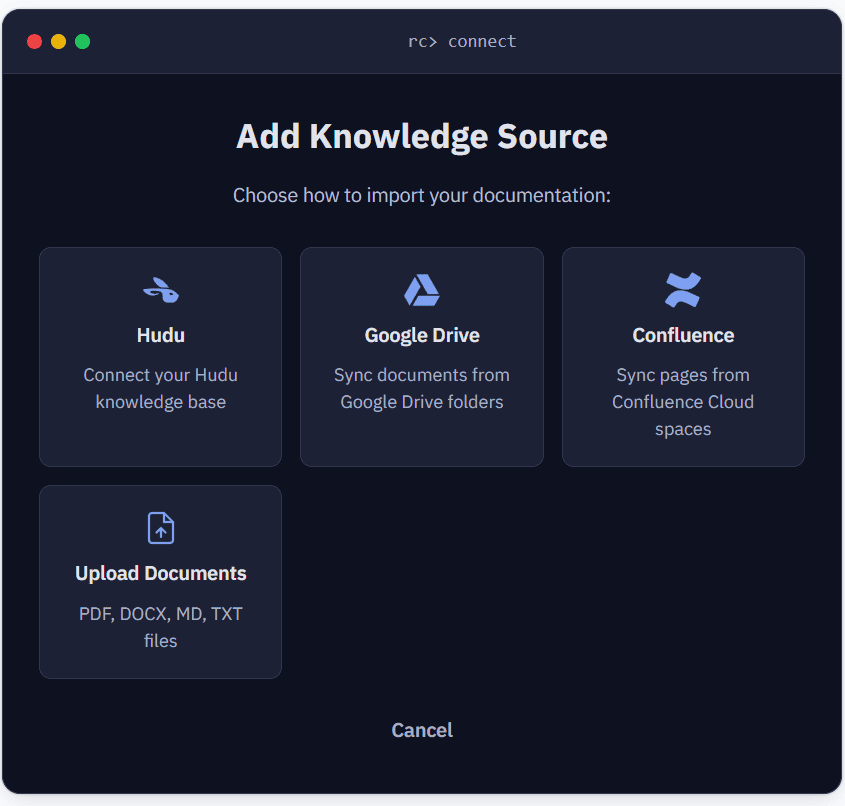
ResolvCmd needs documentation to work with. Choose the source that best fits your team:
- Google Drive — Connect a Google account and select specific folders containing your SOPs, procedures, and documentation
- Hudu — Connect your Hudu instance to pull articles, procedures, and asset data
- Confluence — Connect your Atlassian instance and select specific spaces
- Document Upload — Drag and drop PDF, DOCX, MD, or TXT files directly
After connecting, ResolvCmd indexes your documentation. This typically takes 2-5 minutes depending on volume. You can watch the progress on the Sources page.
Run your first resolution
Once your knowledge source is synced:
- Go to the Resolve page
- Enter a ticket description — either paste a real ticket or type a common issue your team handles (e.g., “User unable to connect to VPN after password reset”)
- Choose Fast (quick answer) or Detailed (full analysis)
- Review the resolution — you’ll see numbered steps, each linked to the source document it came from
Connect your ticketing system
To get resolutions inside your tickets automatically:
- Zendesk — Install the ResolvCmd sidebar app. Once installed, resolutions appear automatically in the ticket sidebar when a new ticket arrives. See Connecting Zendesk for setup steps.
- ConnectWise Manage — Add the ResolvCmd pod to your ConnectWise service tickets. Resolutions appear in the pod when a technician opens a ticket. See Connecting ConnectWise Manage for setup steps.
Autotask and HaloPSA integrations are coming soon.
What’s next
- Add more knowledge sources to improve resolution coverage
- Review Knowledge Health to see where your documentation has gaps
- Invite team members — technicians are unlimited on all plans
- Set up your organization dictionary to teach ResolvCmd your internal terminology