Integrations
Connecting ConnectWise Manage
ResolvCmd works inside ConnectWise Manage through a pod that appears on service tickets. When a technician opens a ticket, the pod displays a proposed resolution with source citations from your connected knowledge sources.
Prerequisites
- ConnectWise Manage admin access (to configure pods and create API members)
- A dedicated ConnectWise API member with read-only access to Service Tickets and Members
- An active ResolvCmd account with at least one knowledge source connected and synced
Step 1: Create a ConnectWise API member
This is done inside ConnectWise, not ResolvCmd.
- In ConnectWise, go to System > Members
- Create a new member or use an existing one
- Go to System > Members > API Members
- Create a new API key for this member
- Note down the Client ID, Public Key, and Private Key
The Private Key is only shown once — save it somewhere secure.
Recommended: Create a dedicated API member named something like “ResolvCmd Integration” with minimum read-only permissions to Service Tickets and Members.
Step 2: Connect in ResolvCmd
- In ResolvCmd, go to Settings > Integrations
- Click Connect next to ConnectWise Manage
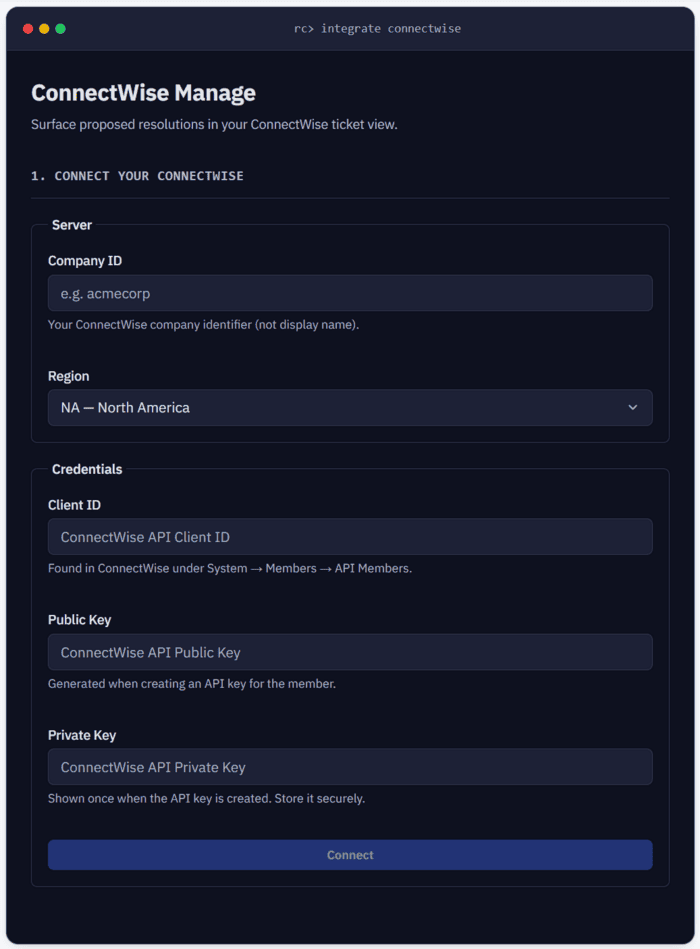
- Fill in the connection form:
| Field | What to enter | Where to find it |
|---|---|---|
| Company ID | Your CW company identifier (e.g., acmecorp) | This is the internal ID, not your display name. Found in the CW login screen or System > My Company. |
| Region | NA, EU, AUS, or Custom | NA = North America, EU = Europe, AUS = Australia. Select “Custom” only for on-premise or non-standard hostnames. |
| Client ID | ConnectWise API Client ID | System > Members > API Members |
| Public Key | API Public Key | Generated when you created the API key |
| Private Key | API Private Key | Shown once at creation time. If lost, generate a new API key. |
- Click Connect. ResolvCmd will validate your credentials against ConnectWise before saving.
Step 3: Choose your display mode
After connecting, ResolvCmd displays two URLs:
- Pod URL (compact sidebar) — A compact view that fits in the ConnectWise pod panel alongside the ticket. Best for quick reference while working a ticket.
- Tab URL (full resolution view) — A full-width view that opens as a separate tab within the ticket. Best for detailed resolutions with longer step lists and expanded source citations.
You can set up one or both. Copy the URL for the mode you want to use.
Step 4: Configure in ConnectWise
- In ConnectWise, go to System > Setup Tables
- Search for Manage Hosted API (or Pod Configuration)
- Click Add New
- Configure:
- Description:
ResolvCmd(orResolvCmd Pod/ResolvCmd Tabif adding both) - Screen: Service Ticket (or the appropriate ticket view)
- Type: Pod
- Origin URL: Paste the Pod URL or Tab URL from ResolvCmd
- Pod Height:
400(pixels — adjust as needed)
- Description:
- Save
To set up both views, repeat these steps with the second URL.
The ResolvCmd pod or tab will now appear on ConnectWise service tickets.
Important notes
- Both the Pod URL and Tab URL contain placeholders like
[cw_id]and[cw_memberid]. ConnectWise replaces these automatically with the real ticket ID and logged-in technician’s member ID. Do not edit these placeholders. - Disconnecting revokes the API key. The pod and tab will stop loading until you reconnect.
- ResolvCmd fetches ticket data server-side using the API credentials you provided. The technician’s browser does not make direct calls to the ConnectWise API.
Troubleshooting
| Symptom | Cause | Fix |
|---|---|---|
| Pod/tab shows 401 / Unauthorized | API key was revoked or integration disconnected | Reconnect the integration in ResolvCmd, copy the new URLs |
| Pod/tab shows “Ticket not found” | URL placeholders were edited | Re-copy the URL from ResolvCmd (it contains [cw_id] and [cw_memberid] placeholders that CW replaces automatically) |
| “Failed to connect” during setup | Invalid credentials | Double-check Company ID, Client ID, and keys. Ensure the API member is active in ConnectWise. |
| Pod doesn’t appear on tickets | Pod not configured in CW | Verify: System > Setup Tables > Manage Hosted API > Pod Configuration has the ResolvCmd entry |