Integrations
Uploading Documents
Document Upload lets you manually add files to your knowledge base. Use this for documentation that isn’t stored in a connected platform — exported runbooks, vendor PDFs, internal SOPs, or any other reference material your team uses.
Upload documents
- In ResolvCmd, go to Sources > Add Source
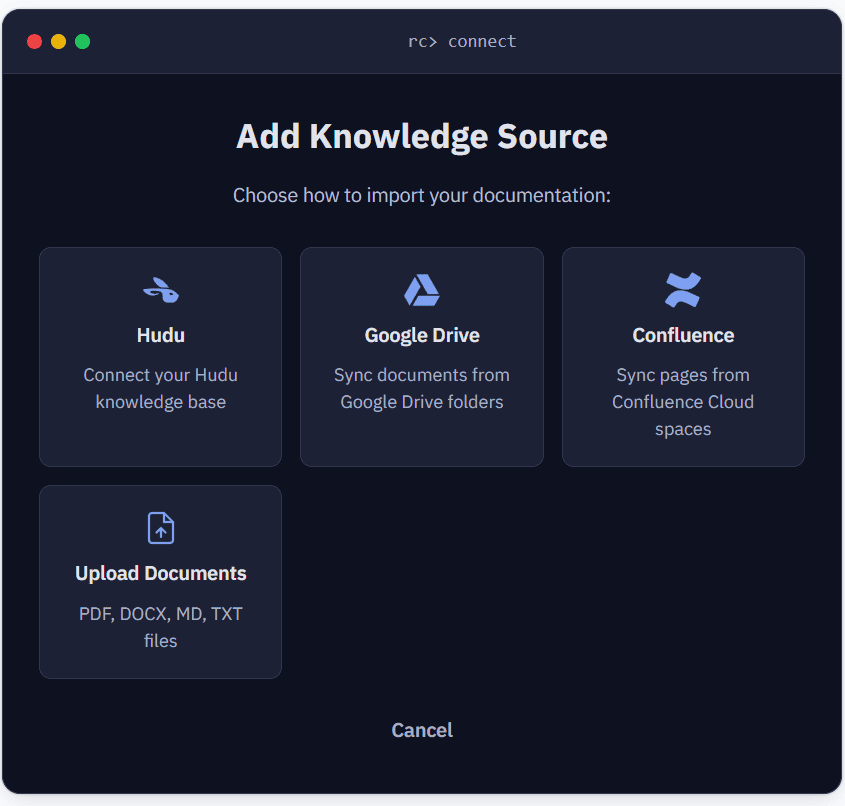
- Select Upload Documents
- Click Create Upload Source
- You’ll be taken to the source detail page
- Drag and drop files into the upload area, or click Browse to select files
- Click Upload
Supported file types
| Extension | Notes |
|---|---|
.pdf | Digital PDFs work best. Scanned PDFs (images of text) will have poor extraction. |
.docx | Microsoft Word documents |
.md | Markdown files |
.txt | Plain text |
.html / .htm | HTML files |
.zip | Automatically extracted — inner files are processed if they’re a supported type. Skips __MACOSX/ folders and hidden files. |
Limits
| Limit | Value |
|---|---|
| Max file size | 50 MB per file |
| Max files per upload | 20 files at once |
Tips
- File name = document title. Name your files clearly (e.g.,
VPN Troubleshooting Guide.pdfnotdoc_v3_final.pdf). - Use ZIP for bulk uploads. Gather your PDFs, DOCX, and Markdown files into a ZIP and upload once.
- Prefer Markdown or HTML for the highest quality extraction.
- Scanned PDFs (images of text rather than selectable text) will produce poor or empty results. Consider converting to DOCX or Markdown first.
Troubleshooting
| Symptom | Cause | Fix |
|---|---|---|
| ”No supported files found” | File extension not in the supported list | Only PDF, DOCX, MD, TXT, HTML, and ZIP are accepted |
| ”Exceeds 50MB limit” | File too large | Split into smaller files, or compress and upload as separate documents |
| PDF uploads but resolution quality is poor | Scanned PDF (image-based) | Convert to DOCX or Markdown for better text extraction |
| ZIP upload processes 0 files | Inner files are unsupported types or all hidden | Ensure ZIP contains supported file types and isn’t just folders or images |